- Overview - Read First
- Listing, Creating, Updating, Viewing, and Deleting League Entities
- Adding Multiple Teams and Players to your League
- Defuncting Teams and Players in your League
- Generating a Season and a Schedule for that Season
- Getting Started
- Display Event Schedule
- Posting Scores for an Event
- Adding a Substitute Player
- Display Event Results
- Team Match Events
League Tracker Administrator Help
Overview
League Tracker was originally developed for my work summer league. After more than 10 years of promising my league that I would update and modernize our website, I finally found time to do that and this software and website is the result of that effort.
Feature List
- Designed specifically for league play and for either 2 or 3 person person teams.
- Accomodates both weekly team play as well as special league match events, e.g., scrambles, shambles, etc.
- Access to the system is entirely web based, meaning to use League Tracker, you and your league members must have access to the Internet.
- League Tracker is Bootstrap enabled. All pages and dialogs in the application are "responsive". Each page adapt dynamically to the viewport of the device on which they are viewed. This makes the pages respond, look good, and work reasonably well on phones, tablets, laptops, as well as full screen devices.
- Currently, there are no installable "mobile or tablet apps" for League Tracker. Whether there will be one in the furture is yet to be determined.
Seasons, Sessions, and Events
- Each team plays against each other during a Season
- A Season is broken into one or more Sessions and Sessions contain one or more Events
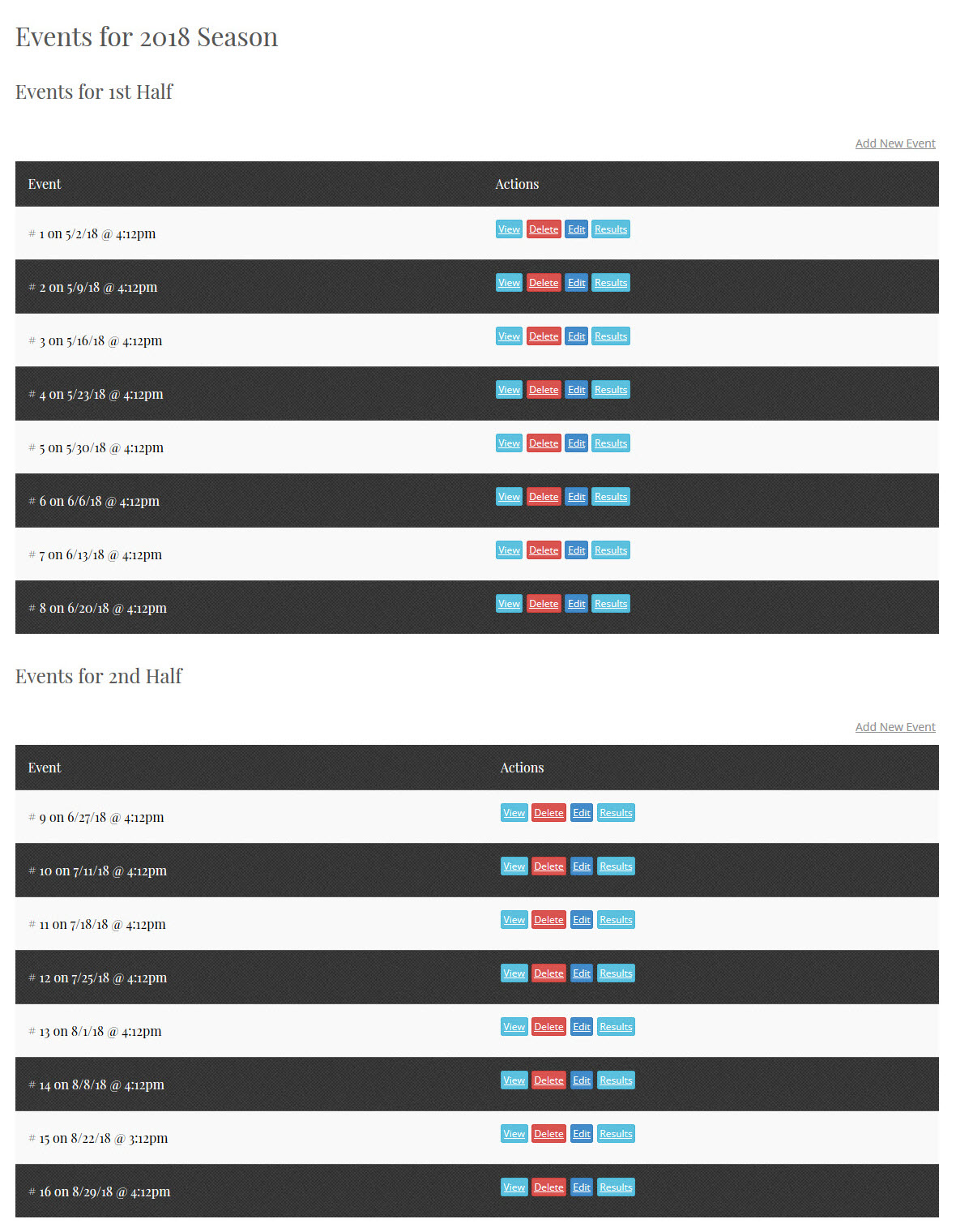
- The following is an example of my league's 2018 season containing 2 sessions and 17 events:
Games
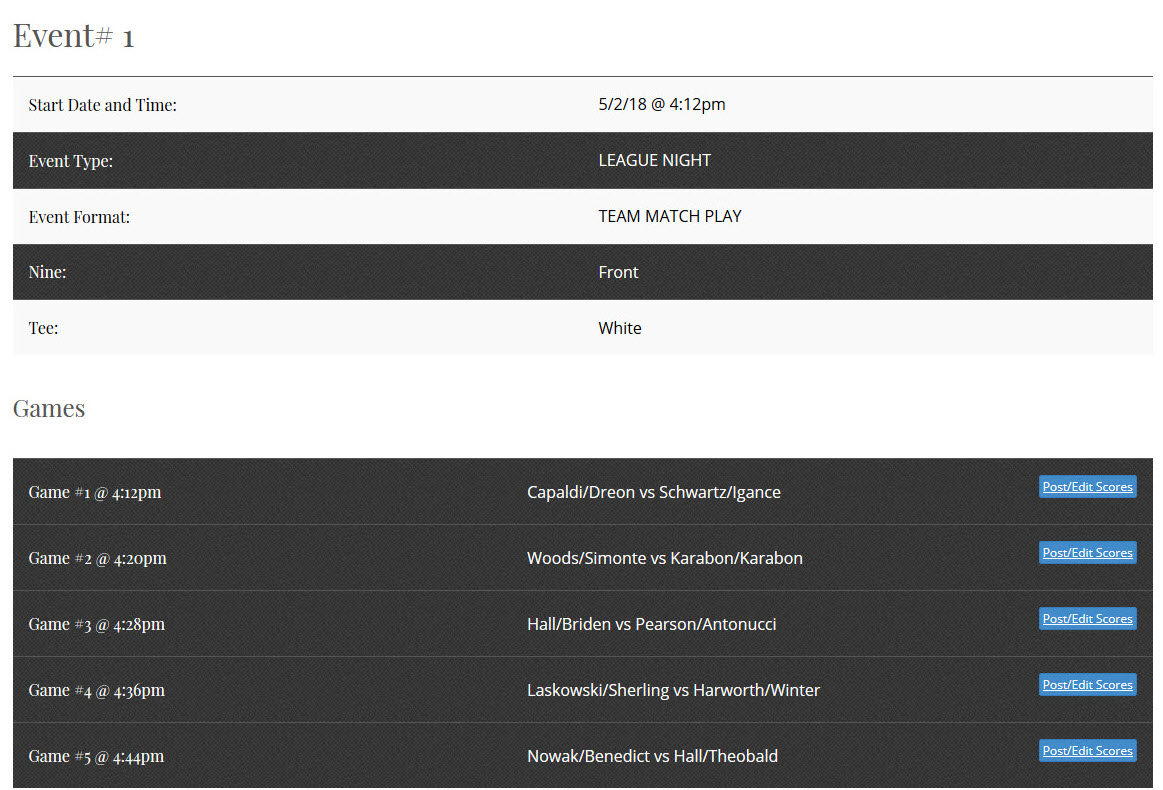
- An Event consists of Games where in each Game one team plays another in match play format; i.e, a team's A player match plays the other team's A player, and a team's B player match plays the other team's B player.
- The following is an example of one event in my league:
Scoring
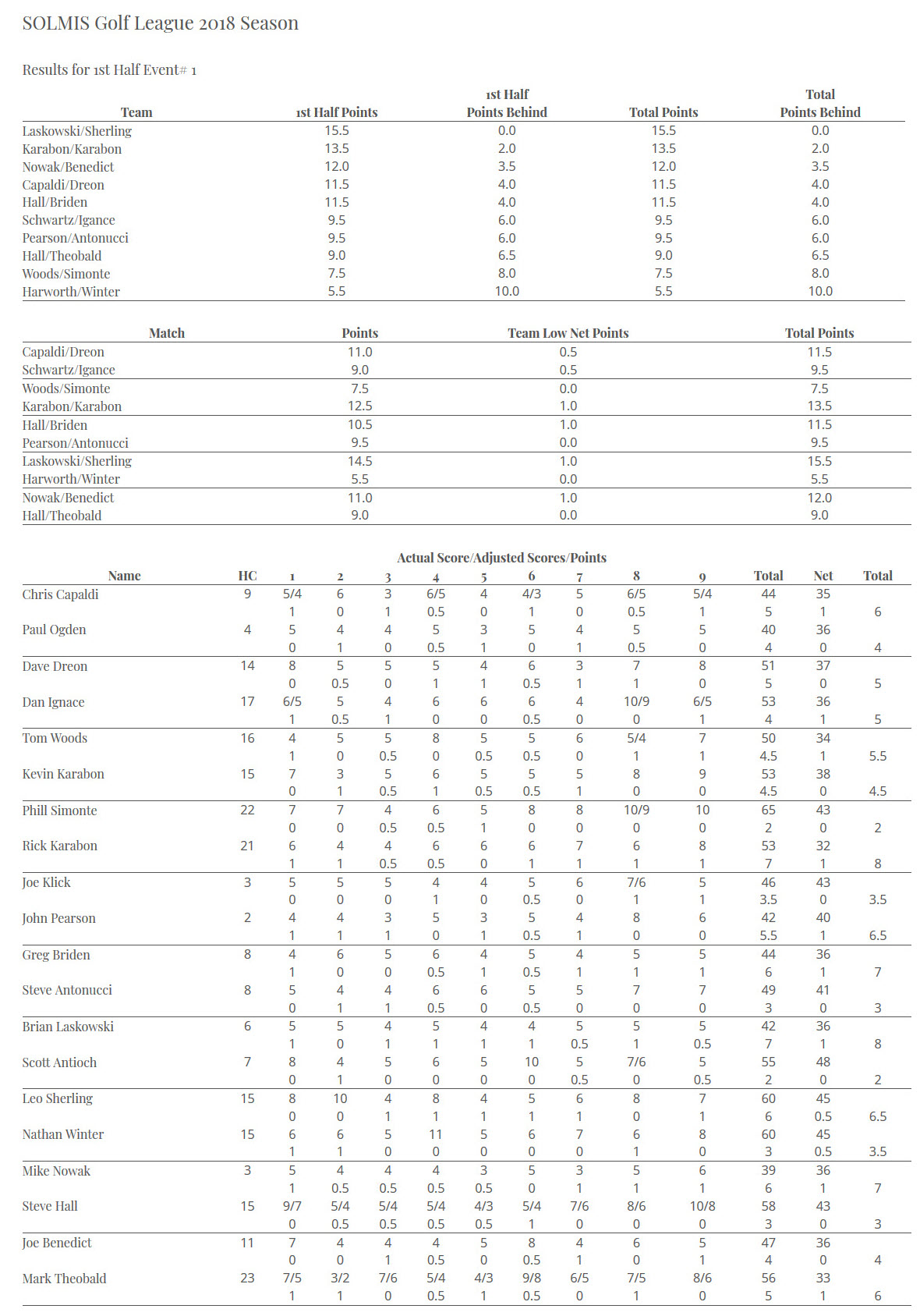
- If players tie on a hole (after applying the handicap), each player is awarded .5 points. Winning a hole gives the winner a whole point.
- There is one point awarded for low player net. If players tie low net, each player is awarded .5 points; otherwise, the player with the lowest net is awarded the entire point.
- There is also one point awarded for low team net. If teams tie low net, each team is awarded .5 points; otherwise, the team with the lowest net is awarded the entire point.
- The following is an example of an event results. The results also show current standings:
Generating a Schedule
- There is functionality to generate a Season and a "round robin" schedule of Events based on a number of parameters. Here is an example of how I use this functionality in my league:
- My league runs for 17 weeks (first parameter).
- The generator splits the 17 weeks into two Sessions (another parameter)
- The first Sessions lasts for 8 weeks. For the first 7 weeks, teams play each other in a match play format. The 8th week is what is called a "position match", where the team in first place at that time plays the team in second place, the third place team plays the fourth place team, etc., on down the line.
- After the 8th events, results are calculated and the team with the highest point total is the 1st half winner.
- The second Sessions also lasts for 8 weeks, and also for the first 7 weeks of that session teams play each other in a match play format, with the 8th week also being a "position match".
- Also after the 8th event of the 2nd half, results for that half are calculated and the team with the highest point for that half is the 2nd half winner.
- The 17th week is "playoff match" where the winner of the first half plays the winner of the second half to determine the league champion. Everyone else plays a 2 person scramble with handicaps.
Handicapping
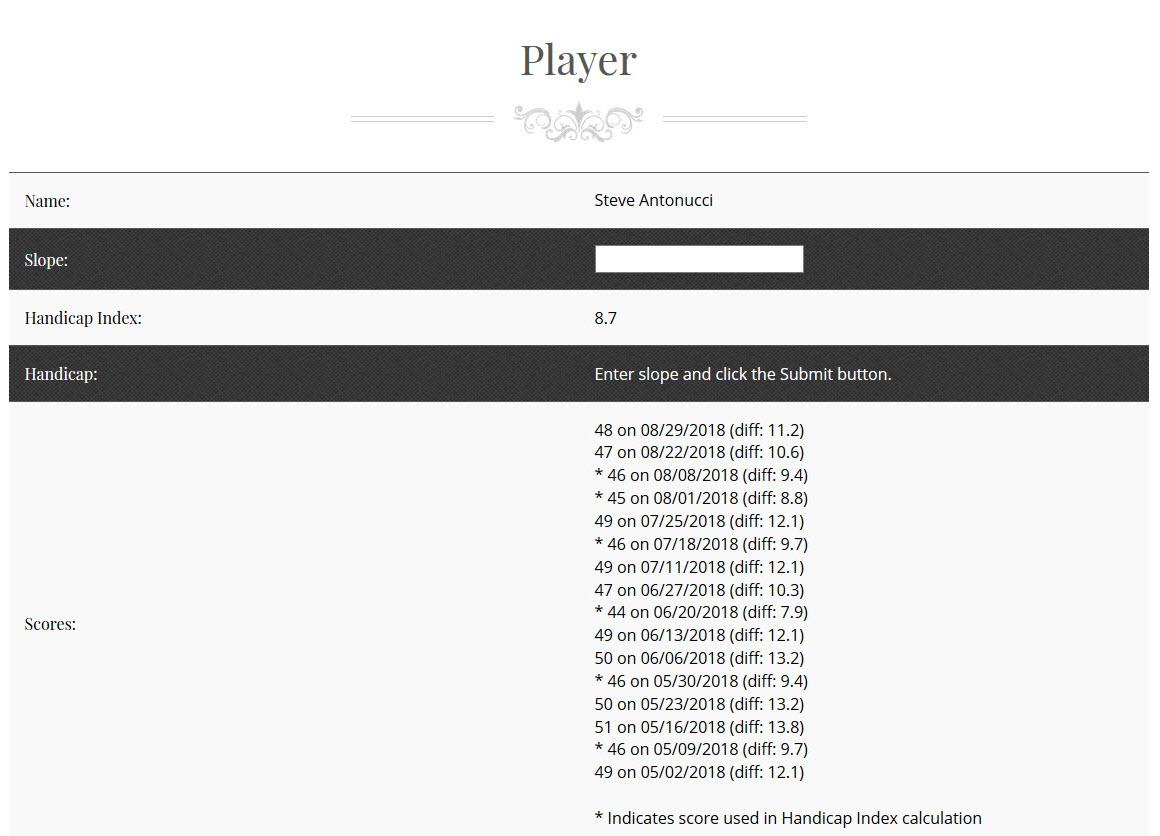
- League Tracker uses the World Handicap Formula to determine a player's handicap index and handicap. It's unofficial, but it works well as any for league play and it gives a player an idea of what their handicap would be if they recorded their scores using an offical USGA site.
- The following is an example of one player's handicap page.
Other Functionality
- Most of the other administrator functionality in League Tracker is CRUD based, where you can list, Create, Retrieve, Update, and Delete various League Tracker entities.
Listing, Creating, Updating, Viewing, and Deleting League Entities
The following Entities are part of the League Tracker Domain Model:
- Season:
- Session:
- Event:
- Game:
- Player:
- Team:
A Season is merely a name for a period of time, for example 2019 for the 2019 season, or Fall 2019 for the 2019 fall season. A Season is a container for Sessions and a Session is a container for Events.
A Session is also just a name for a period of time. Sessions contain Events and belong to a Season. For example the 1st half and 2nd half sessions might be the names and time periods belonging to the 2019 season.
Team points are calculated for each session and for the entire season. In this way you might have a first and a second half sessions to your season, and first and second half winers. Also, if you so desire have a playoff bwtween these two winners at end of a season to determine a league champion.
You can have as many session for a season as you'd like for a season, however, the 1st half and the 2nd half model works generally well for most summer leagues. The sample league demonstrates this model.
An Event is played on a specific date and starts at a specified time. Events contain Games and as was stated above, belong to a Session and correspondly a Season.
A Game is a match between two teams. It is played on a specific date and starts at a specified time. In each Game, a team's best (or "A" player plays the opposing team's best player, an a team's second best player or "B" player) plays the opposing team's second best player.
A Player is a person in a league. Player names must be unuque within a league, and League Tracker will not let you add a player name that already exists in the league. You therefore need to somehow differentiate players with like names by using their middle initials or names.
All new players must have a seed handicap index. It's required because a new player has not played enough rounds in the league to have established an official league handicap index. Therefore, a "best guess" seed index is needed to be able to calculate a suitable handicapo for that player. Ask each player what they usually shoot for 9 holes. For example, let's say the player responds with "I usually shoot about a 46 or 47 for 9". Subtract the par from the highest value they provide, let's say that par is 36. Next multiply the result by .9 and use that as the seed handicap index. In this case, 47 - 36 = 11 x .9 = 9.9. This isn't perfect, but given that the player is honest, it has proven to be about right until a minimum number of scores have been recorded in the league to obtain a handicap index, as determined by the World Handicapping System.
A Team consists of 2 players. The player with the lowest handicap index is the A player and the other the B player. Who is the A or the B player is determined at the time an Event or a Game is player. Therefore, the A and B players may be reversed if both players are very close in handicap index.
All the entities described above can be listed, created, updated, viewed, and deleted. For example to see all the players in a league, click the Players menu item. From this display you can create a new player or list of players, or view, update, and delete any individual player in the list. The same functionality exists for all the enties listed above. Usage is fairly self explanatory, just click the appropriate View, Delete, or Edit buttons associated with each entity in the appropriate lists in which they are contained.
Adding Multiple Teams and Players to your League
When you click either the Players or the Teams menu item, you are presented with a list of players and teams in your league. Initially, there will be no players or teams in your league so to add players and teams in bulk you have the option of adding a multiple players and teams by clicking on the Add Player List or a Add Team List on the list page. This is a good and quick way of creating all the players and teams in your league with one dialog. Add New Player and Add New Team is a good way to add/create just a single player or team, and that link is on the player and team list page as well.
Start by adding all your regular players in bulk, followed by adding all your teams containing these regular players. Follow that by adding your subs in bulk.
Defuncting Teams and Players in your League
Teams and players are part of events. Therefore, as long as an event exists that contain specific teams and players, those teams and players cannot be deleted. However, they can become "defuncted", which is basically just another word for pending deletion. Teams and players are actually deleted when they are no longer contained in an Event or Game of an Event.
Generating a Season and a Schedule for that Season
Although you can manually create a new season, and then add sessions, events, and games to that season, that process can be very laborious and time consuming. To assist you in creating a schedule, a generate season option is available to you as follows. Before using this functionality, however, you must create all the regular players and teams that you are going to use in your that season. Also, you will need to defunct any teams that will not be playing in the newly generated season.
- Start by clicking the Seasons menu item.
- Click the Generate Season link.
- A Generate Season dialog will be displayed.
- Fill in the field of that dialog as appropriate.
- Click the Save button.
A new season and all the sessions, events, and games for that season will now be generated. You can then event
League Tracker User Help
Getting Started
Before you can use League Tracker, your league administrator will need to provide you with a set of log in credentials. These credential not only provide you with access to League Tracker functionality, but also "lock" you into your specific league. Once you have obtained your credentials, click the Login menu selection and enter those into the appropriate fields of that dialog. After verification, an updated menu will be displayed providing you with additional functionality.
Display an Event Schedule
To display an schedule of events for a season:
- Start by clicking on the Seasons menu item.
- A list of Seasons will be displayed.
- Next click on Events button for the season schedule you are interested in seeing.
The league administrator controls how many seasons and subsequent events to keep. The user has access to not only the current schedule and events, but also past history of any previus season events as well.
Posting Scores for an Event
When a schedule of events is displayed, you are provided with two options for each event: View and Results. To post or update your scores for an event:
- Start by clicking the View button.
- The games for that particular event will be displayed.
- Next click on the appropriate Post/Edit Scores button.
- A Post Games Scores dialog will be displayed.
- Enter each players score as appropriate.
- If a sub is playing for a player, click the Substitute Players link and select the appropriate subs for the player or players in question.
- If a player did not get a sub, just enter zeros for that player's scores.
- The playing partner's score will be used twice to calculate results.
- If the entire team is a "no show", enter zeros for both player's scores.
- League Tracker will use the two player's worst scores from previously posted events to calculate results.
- If an event is "rain shortened", enter zeros for the holes not played.
- League Tracker will consider these scores as partials and split the points for the holes.
- When all scores have been entered, click the Save button. You will not be allowed to complete the dialog until all score fields contain a number.
Note: If you need to enter a score for a new sub that is a sub not in the substitutes drop down list, add that sub using the Add Player functionality. You will need to add the sub first and then return to the Post Games Scores dialog. See the Adding a Substitute Player help reference for details.
Adding a Substitute Player
All players have Add Player privileges. This privilege has been provided to each player in order for players to Post/Edit Scores without needing to involve the league administrator.
- Start by clicking the Players menu item.
- A list of the league's current players will be displayed.
- Next click on the Add New Player link at the top right of the player's list.
- An Add Player dialog will be displayed.
- Enter the appropriate player information and click Save.
You only need to enter the required fields to be able to add the player to the sub list. If you do not know all the optional information that is OK. Send an email to the league administrator informing your administrator add any addional information as appropriate.
Determining the Seed Handicap Index value gets a little tricky. It's required because a new player has not played enough rounds in theleague to have established an official league handicap index. Therefore, a "best guess" seed index is needed to be able to calculate a suitable handicapo for that player. Before the round, ask the sub what they usually shoot for 9 holes. For example, let's say the sub responds with "I usually shoot about a 46 or 47 for 9". Subtract the par from the highest value they provide, let's say that par is 36. Next multiply the result by .9 and use that as the seed handicap index. In this case, 47 - 36 = 11 x .9 = 9.9. This isn't perfect, but given that the player is honest, it has proven to be about right until 5 scores have been recorded in the league.
Lastly, League Tracker uses the standard USGA Handicap Formula to calculate a player's handicap index and course handicap. Click the provided link for full details of that formula. The handicap index computed by League Tracker is an official USGA handicap, but it works well enough for league play.
Display Event Results
To display an event results:
- Start by clicking on the Seasons menu item.
- A list of Seasons will be displayed.
- Next click on Events button for the season events you are interested in seeing.
- Lastly, click on the Results button for the event results you want displayed.
Team Events
In addition to the weekly league event schedule, League Tracker is also equipped to handle and calculate the results of special team match events, as follows:
- Scramble: A 2 or more player team event where each player hits a tee shot on each hole, then everyone plays from the spot of the best shot. Play continues by selecting the best shot until one player hits the ball in the hole. The team score is total of the best shots.
- Shamble: A format, similar to a scramble where every player hits from the tee; the best tee-shot is selected and then each player holes-out from the selected tee-shot. Each player records their actaul score for each hole. The team score for each hole is the best player's score. The team's total score is the sum of the best players scores for all holes.
- Better Ball: Each player plays their own ball and records their score for each hole. The team score for the hole is the better of each player's score. The team's total score is the sum of all best scores.
- Low Team Net: Each player plays their own ball and record their score for each hole. The player's score for the hole is the player's score after adjusting for the player's handicap. The team total is the sum of both adjusted scores for both players combined.
For scrambles, only enter the team's score. For all other formats, enter each player's actual score. DO NOT adjust for handicaps. League Tracker will do all the necessary computations for you. For scrambles, shambles, and better ball events, you also have the option to use a handicapping calculation built into League Tracker. If you check "With Handicapping" option for these team match events, League Tracker will apply player and team handicaps as follows:
-
For scrambles:
- For 2 player teams, the team handicap is calculated by adding together 35% of the "A" player's and 15% of the "B" player's handicaps.
- For 3 person teams, the team handicap is calculated by adding together 20% of the A-player's handicap, 15% of the B, and 10% of the C.
- For 4 person teams, the team handicap is calculated by adding together 20% of the A-player's handicap, 15% of the B, 10% of the C, and 5% of the D.
- League Tracker adds the adjusted handicaps for all players, round off the total to a whole number and that is the team's handicap.
-
For shambles and better ball:
- Each player's handicap is 70% of their full handicap.
- League Tracker adds the adjusted handicaps of all the players and that is the team's handicap.